AI Desktop Assistants for Small Business: A Practical Operations Guide
The Shift Already Happening on Your Desktop
Sixty-eight percent of all small businesses now use AI regularly, up from 48% in mid-2024 (QuickBooks Intuit survey). That is not a gradual trend. That is a tidal shift in how small businesses operate, and it happened in under a year.
If you run a small business and you have not yet explored what an AI desktop assistant small business setup looks like in practice, you are already behind the majority of your peers. There is the good news: the tools available right now are more practical, more accessible, and more directly useful than anything that existed even twelve months ago.
This guide walks through exactly what AI desktop assistants are, which ones matter, how to set them up for real business operations, and what results to expect. No hype. No “revolutionize your workflow” nonsense. Just the specific tools and steps that produce measurable outcomes.
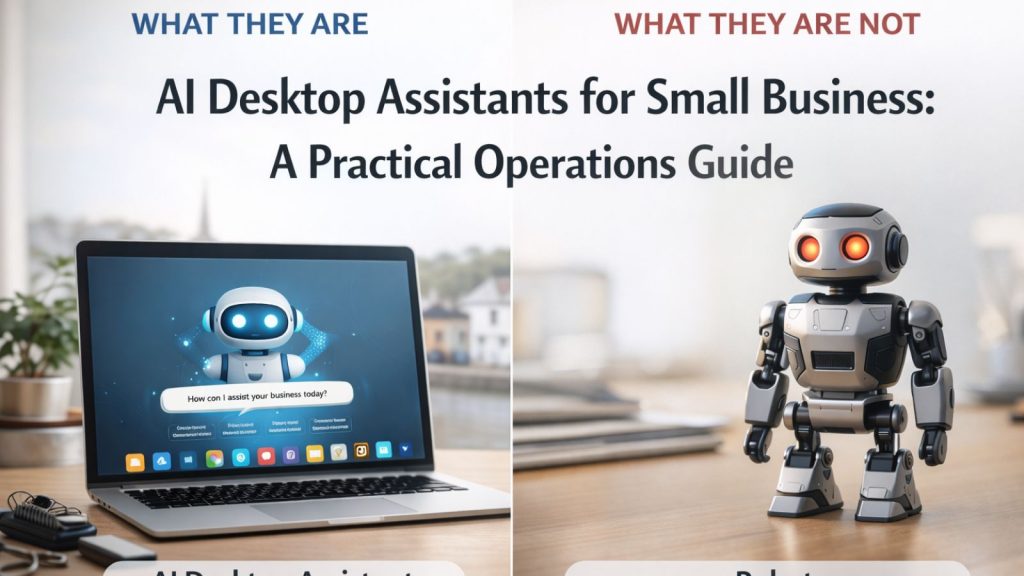
What AI Desktop Assistants Actually Are (And What They Are Not)
An AI desktop assistant is software that runs on your computer (or connects to it) and performs tasks that would otherwise eat your time: organizing files, drafting emails, generating content, processing documents, managing client information. The key difference from browser-based AI tools is direct access to your local file system and integrations with the applications you already use.
Think of it this way: ChatGPT in a browser is like texting a smart friend for advice. An AI desktop assistant is like hiring a part-time operations coordinator who sits at your desk, has access to your filing cabinet, and actually does the work.
These tools are not autonomous replacements for your judgment. They execute structured tasks based on your direction. The quality of what they produce depends entirely on how clearly you set them up, which is exactly why this guide exists.
The AI Business Operations Tools That Actually Deliver
Claude Desktop: Your AI File Organization and Content Engine
Claude Desktop, built by Anthropic, is the most capable AI desktop assistant available for small business operations right now. Its Co-Work feature connects directly to your local file system, meaning it reads, moves, creates, and organizes files autonomously based on your instructions.
Here is what that looks like in practice. You point Claude Desktop at a folder full of client documents, invoices, and project files. It scans the contents, identifies patterns, and reorganizes everything into a logical structure. In our experience working with service-based businesses, this single capability saves 2 to 3 hours per week that would otherwise go to manual file sorting.
Claude Desktop for business goes beyond file organization. It generates blog posts, email sequences, client proposals, and internal documentation. It reads existing files for context, so the output actually matches your tone and business specifics rather than producing generic filler.
The Google Drive integration extends this further. Claude Desktop connects to your cloud storage for remote file scanning, analysis, and organization. One workflow we have built for consultants: after a client call, drop your notes into a designated Google Drive folder. Claude Desktop picks them up, generates structured post-consultation documentation, and pushes the output to Notion for your team to review.
Anthropic Marketplace Plugins: Pre-Built Skill Sets
The Anthropic Marketplace offers pre-built plugin skill sets you install directly from GitHub. These are not vague “AI capabilities.” They are structured workflows designed for specific business functions.
Current categories include:
- Email sequence generation: produces complete lead nurture campaigns with subject lines, body copy, and CTAs
- Blog draft creation: generates SEO-structured content based on keyword briefs
- SEO audit workflows: analyzes page content against ranking factors
- Competitor analysis: pulls and structures competitive intelligence
The email sequence plugin deserves specific attention. It does not just spit out generic email templates. It asks qualifying questions about your audience, offer, and sales cycle, then produces structured output tailored to your specific situation. For businesses where email marketing returns €36 for every €1 spent (a 3,600% ROI according to industry benchmarks from Litmus), getting email sequences right is not optional; it is one of the highest-leverage activities available.
Notion as Your Structured Output Destination
Notion serves as the destination for everything your AI desktop assistant produces. Client documentation, content calendars, process wikis, project briefs: all of it flows into Notion where your team accesses and acts on it.
The combination of Claude Desktop generating content and Notion receiving it creates a production pipeline. You define templates in Notion. Claude Desktop populates them. Your team reviews and publishes. No one is staring at a blank page.
Step-by-Step: Setting Up Your AI Desktop Assistant Workflow
This workflow assumes you are starting from zero. Each step builds on the previous one. Budget 2 to 3 hours for initial setup, then 30 minutes per week for optimization.
Step 1: Install and Configure Claude Desktop (30 minutes)
Download Claude Desktop from Anthropic’s website. During setup, grant file system access to the specific folders you want it to work with. Start narrow: pick one project folder or client directory.
Connect your Google Drive account if you use cloud storage. This lets Claude Desktop scan and organize files across both local and cloud environments.
Pro tip: Create a dedicated “AI Inbox” folder on your desktop. Drop files here that need processing. Claude Desktop monitors this folder and automatically acts on new additions. This single habit change eliminates the friction of remembering to “use the AI tool” because the tool comes to the work, not the other way around.
Step 2: Install Relevant Marketplace Plugins (15 minutes)
Visit the Anthropic Marketplace and install plugins matching your immediate needs. For most small businesses, start with the email sequence plugin and one content generation plugin.
Installation is straightforward: each plugin has a GitHub repository with setup instructions. Clone the repository, follow the configuration steps, and the new capabilities appear in Claude Desktop’s interface.
Step 3: Build Your First Automation (45 minutes)
Pick your highest-frequency repetitive task. For service businesses, this is usually post-client communication. For product businesses, it is typically email marketing content.
Here is a concrete example for a service business:
- Create a “Client Notes” folder in Google Drive
- After each client meeting, drop a rough notes file into that folder
- Configure Claude Desktop to monitor the folder
- Set the output template: structured summary, action items, next steps, follow-up email draft
- Point the output to your Notion workspace
The first time takes 45 minutes to configure. Every subsequent client meeting saves you 20 to 30 minutes of documentation work.
If you want to build your first AI content workflow, this guide walks through the content creation side of this process in more detail.
Step 4: Set Up AI Email Marketing Automation (30 minutes)
Since 81% of SMEs use email marketing to reach customers (Emarsys), and automated email workflows generate 30x higher returns compared to one-off campaigns (Omnisend), this step has outsized impact.
Using the email sequence plugin:
- Define your audience segment (new leads, existing clients, re-engagement)
- Answer the plugin’s qualifying questions about your offer, typical objections, and desired action
- Review the generated sequence (usually 5 to 7 emails)
- Edit for your voice and specific details
- Load into your email platform (Mailchimp, ConvertKit, ActiveCampaign)
The plugin generates the structure and copy. You refine it. This takes a fraction of the time compared to writing from scratch, and the output follows proven email marketing frameworks rather than whatever you happen to think of at 11pm on a Tuesday.
Step 5: Measure and Optimize (Ongoing, 30 minutes per week)
Track three metrics weekly:
- Time saved: log hours recovered from automated tasks
- Output quality: review AI-generated content before it goes live (always)
- Error rate: note when the AI produces something unusable and adjust your prompts
Workers save an average of 5.4% of work hours with generative AI, translating to over 2 hours per 40-hour week (Stanford/MIT research). That is the baseline. With a well-configured desktop AI productivity setup, we consistently see 4 to 6 hours saved per week for small business owners handling their own operations.
Results, Data, and Honest Expectations
What the Numbers Say
AI boosts productivity by 40% on average across sectors (Nielsen Norman Group research). For small businesses specifically, the gains concentrate in three areas: content creation, client communication, and file management.
Here is a realistic before-and-after for a solo consultant or small service business:
| Task | Before AI Assistant | After AI Assistant |
|---|---|---|
| Client follow-up emails | 25 min each | 5 min (review and send) |
| File organization | 3 hrs/week | 20 min/week |
| Blog content drafting | 4 hrs per post | 1.5 hrs (generation + editing) |
| Email sequence creation | 8 hrs per sequence | 2 hrs (generation + refinement) |
| Meeting documentation | 30 min per meeting | 5 min (review AI output) |
These are conservative estimates based on what we have observed across client implementations. Your results depend on how consistently you use the tools and how well you configure them.
To see how a local salon owner would put this into practice, that case study breaks down the real-world implementation for a brick-and-mortar business.
What AI Desktop Assistants Will Not Do
Honesty matters here. These tools will not:
- Replace your expertise or client relationships
- Produce publish-ready content without human review
- Handle nuanced business decisions or sensitive client situations
- Work well without clear setup and ongoing refinement
The 96% of small business owners who plan to adopt emerging technologies including AI (US Chamber of Commerce) are right to do so. But adoption without configuration is just installation. The value comes from the workflows you build around the tools.
For context on adoption trends closer to home, what Irish businesses need to know about AI covers the SME-specific data.
Frequently Asked Questions
Do I need technical skills to use Claude Desktop for business operations?
No. Claude Desktop is designed for non-technical users. The interface is conversational: you describe what you want done, and the tool executes it. File system access requires granting permissions during setup (a few clicks), and Marketplace plugins install from GitHub with step-by-step instructions. If you have ever installed a browser extension, you have the technical skill required.
How much does an AI desktop assistant setup cost for a small business?
Claude Desktop offers a Pro plan at $20/month, which covers most small business usage. Notion has a free tier that handles basic documentation needs, with paid plans starting at $8/month per user. The Marketplace plugins are generally free (open source on GitHub). Total cost for a functional setup: $20 to $30 per month. Compare that to the value of 4 to 6 hours of recovered time weekly.
Is my business data safe when using AI desktop assistants?
Claude Desktop processes files locally on your machine for local file operations. Cloud integrations (Google Drive) use standard OAuth authentication. Anthropic’s data handling policies specify that inputs are not used for model training on paid plans. That said, avoid feeding sensitive financial data or personal client information through any AI tool without reviewing the provider’s current privacy policy. Use AI assistants for content, structure, and communication tasks rather than as databases for confidential information.
How long before I see real productivity gains?
Expect a learning curve of one to two weeks where you are slower, not faster. You are building new habits and configuring tools. By week three, the automation starts paying back the setup investment. By month two, most users report the 4 to 6 hour weekly time savings that research predicts. The businesses that fail to see gains are almost always the ones that installed the tools but never built workflows around them.
Your Next Move
You now understand what AI desktop assistants are, which tools deliver real results, and how to set them up for practical business operations. The gap between knowing this and benefiting from it is execution.
Start with Step 1. Install Claude Desktop. Pick one repetitive task. Automate it this week. Then build from there.
Want to stay ahead with practical AI strategies that actually work? Join our membership for step-by-step workflows, tool reviews, and ongoing support designed specifically for small business owners implementing AI operations.