AI Social Media Content: A Full Month of Posts in 2 Hours
Most business owners spend more time thinking about what to post than actually running their business.
The design takes too long. The ideas run out. The content looks inconsistent from week to week. And the whole thing gets pushed to Sunday evening again.
There is a better way to handle this. An AI social media content creation workflow using Claude and Canva connected together lets you generate a full month of posts, thumbnails, logos, and carousels in a single session, with every design opening directly in Canva for editing. You stay in control without having to start from a blank canvas every time.
This guide walks through the exact setup and process.
Why Most Business Owners Fall Behind on Social Media Content
According to Sprout Social, 73% of small business owners cite consistency as their biggest social media challenge. It is not that they do not know what to say. It is that the act of creating the actual content takes long enough that it keeps getting deprioritised.
The bottleneck is design.
Writing a caption takes five minutes. Opening Canva, picking a template, adjusting colors, getting the text right, and making sure it fits the brand can take 45 minutes per post. Multiply that across an Instagram post, a YouTube thumbnail, a carousel, and a logo tweak, and you have burned half a day on content that should have taken an hour.
According to HubSpot, visual content is 40 times more likely to be shared on social media than text-only content. So the design work matters. It just should not eat your week.
This is the problem the Claude and Canva integration solves directly.
What the Claude and Canva Integration Actually Does
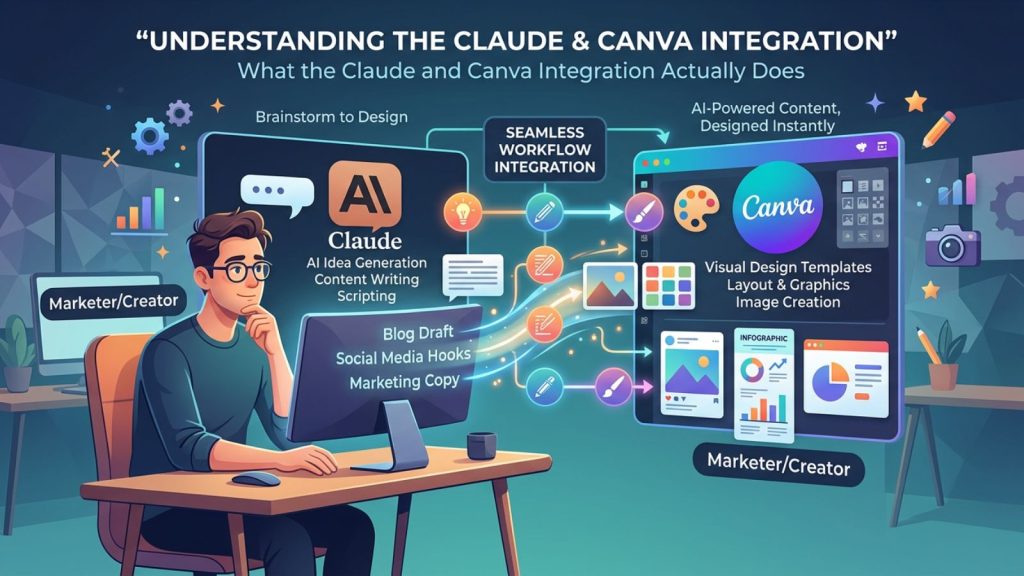
The Claude and Canva integration connects Claude (Anthropic’s AI assistant, used in the browser) directly to your Canva account via a connector.
Once connected, you can prompt Claude to create designs, and it builds them inside your Canva account. The designs are not exported images or screenshots. They are fully editable Canva files that open in your account exactly like any project you created yourself.
You can change text, swap colors, resize elements, and adjust layouts, all without reprompting or starting over.
This is the core difference between this approach and using a standalone AI image generator. Tools like Midjourney or other pure-AI image platforms generate visuals you cannot edit. If a word is wrong, you reprompt and hope the output does not change everything else in the process. With the Claude and Canva integration, the output is yours to edit.
According to Canva, the platform has over 170 million users worldwide, with the majority having no formal design training. The Claude integration sits on top of a tool business owners already know.
The Tools You Need (And What They Cost)
Claude (browser version)
Use Claude at claude.ai in a web browser. The free tier has usage limits that will slow you down. The Pro plan at around €20 per month removes those limits for regular use. This is the only tool you need to initiate the workflow.
Canva (free or paid)
A free Canva account works for this workflow. Canva Pro adds more templates, brand kit features, and background removal, but the core functionality you need is available at no cost.
No other tools required.
The two-tool stack is the point. You are not adding another subscription or learning a new platform. Claude connects to Canva. You prompt. You edit. You post.
The AI Social Media Content Creation Workflow: Step by Step
This is the process for generating a full content suite for one business or campaign theme in a single session.
Step 1: Connect Canva to Claude
Open Claude in your browser. Click the plus icon and scroll to find Manage Connectors. Click the plus at the top of the screen and browse for Canva. Select it and connect your Canva account.
This takes about two minutes. Once connected, the integration persists, so you only need to do this once.
Step 2: Build Your Brand Brief
Before sending any prompts, write out a short brief you will paste into every request. Include:
- Business name and type (for example: “South Street Fitness, a personal training studio”)
- Primary brand colors (for example: “black and deep purple”)
- Target audience (for example: “adults aged 25-45 interested in strength training”)
- Tone (for example: “motivational but not aggressive”)
Having this ready means every design comes out on-brand without you having to repeat the context each time.
Step 3: Generate Your Instagram Post
Paste your brand brief and add a specific instruction. For example: “Using Canva, create an Instagram post for South Street Fitness. Black and deep purple color scheme. Text: ‘Your strongest week starts Monday.’ Clean, bold layout.”
Always include the phrase “using Canva” in your prompt. If you omit this, Claude may write HTML or CSS code instead of building a design. The instruction to use Canva is what triggers the integration.
Claude will access your Canva account and generate the design. You will see a link to open it directly in Canva when it is ready.
Pro tip: Ask Claude to generate three or four variations of the same post in one prompt. This gives you options without extra prompting sessions, and you pick the strongest one.
Step 4: Generate Your YouTube Thumbnail
Paste the same brand brief and adjust the instruction for a thumbnail. For example: “Using Canva, create a YouTube thumbnail for South Street Fitness. Black and purple theme. Text: ‘5 Mistakes Killing Your Progress.’ High contrast, bold headline.”
Thumbnails follow the same process as posts. The output opens in Canva, and you can adjust the text or swap a color before downloading.
Step 5: Generate Brand Assets (Logo and Graphics)
For a logo or brand graphic, give Claude more context about the style you want. Include descriptors like “minimal”, “bold”, “text-based only”, or “icon plus wordmark” depending on the brief.
One honest note here: logo designs through Claude and Canva will produce clean, usable results, but they lean toward Canva’s template styles. They work well for businesses that need a functional logo without a high design budget. If you need something highly bespoke, a designer is still worth considering for that specific asset. For everything else, this workflow is more than sufficient.
Step 6: Build Your Carousel (One Slide at a Time)
Carousels require a slightly different approach. If you ask Claude to build a five-slide carousel in one prompt, the slides may not match in style or some may be missed entirely.
The workaround is straightforward. Prompt one slide at a time using the same brand brief in every request.
- Prompt 1: “Using Canva, create slide 1 of a 5-slide Instagram carousel for South Street Fitness. Title slide. Text: ‘The 5 Habits of People Who Actually Get Results.’ Black and purple.”
- Prompt 2: “Using Canva, create slide 2 of the same carousel. Topic: Habit 1, consistent sleep schedule. Keep the same black and purple theme.”
Repeat for each slide. The extra prompts take five extra minutes. The result is a consistent, on-brand carousel you can open and edit in Canva.
Step 7: Open in Canva and Edit
Every design Claude builds is a link you click to open in your Canva account. From there, you edit exactly as you would any other Canva project. Change text, adjust font size, move elements, update a color.
This is the step that makes the workflow practical for business owners. You are not locked into what the AI produced. You are using it as a starting point and finishing the job yourself.
In our experience working with small business clients, this final edit step takes between five and fifteen minutes per design. The time is spent on refinement, not creation.
The Control Advantage: Why This Beats Pure AI Image Generators
Pure AI image tools (Midjourney, Adobe Firefly, and similar platforms) generate high-quality visuals, but they hand you a flat image file.
If the text is wrong, you reprompt. If the layout shifts, you reprompt. Every reprompt risks changing elements you wanted to keep, and you end up cycling through versions without ever quite landing on what you had in mind.
The Claude and Canva approach trades absolute image quality for complete edit control. The designs are strong, consistent, and on-brand. And every detail is changeable after generation without going back to the AI at all.
For business owners who care about maintaining consistent branding across multiple pieces of content, that edit control matters more than marginal image quality differences.
What to Expect: Results and Realistic Timelines
Here is a realistic breakdown of what one session looks like:
| Content Type | Generation Time | Edit Time |
|---|---|---|
| Instagram post (x3 variations) | 3-5 minutes | 5-10 minutes |
| YouTube thumbnail | 2-3 minutes | 5 minutes |
| Logo/brand graphic | 3-5 minutes | 10-15 minutes |
| Carousel (5 slides) | 10-15 minutes | 15-20 minutes |
| Presentation deck (6 slides) | 12-18 minutes | 20-25 minutes |
A full content suite covering all five categories takes between 45 minutes and two hours from prompt to finished files, depending on how much editing you apply.
For a business posting three times per week across Instagram and YouTube, this one session produces more than enough content for a month.
To see how a local business put this into practice and what the workflow looks like for a specific content calendar, read our local fitness studio content case study.
Frequently Asked Questions
Does this workflow work on the free version of Claude?
The free tier of Claude can run this workflow, but usage limits will interrupt longer sessions. If you are generating four or five pieces of content in one sitting, you will likely hit the limit before finishing. The Pro plan removes this friction. For regular use, it is worth the cost.
Do I need a paid Canva account?
No. A free Canva account supports the full integration. Canva Pro adds features like brand kits, background removal, and premium elements, which are useful but not required to run this workflow.
What if Claude generates something completely wrong?
This happens occasionally, usually when the prompt is vague. The fix is always more context. Include your brand colors, the specific text you want displayed, the content format, and the platform. A detailed prompt produces a usable first draft. A vague prompt produces something that needs more work.
Can I use this for platforms other than Instagram?
Yes. The workflow applies to any content type Canva supports, including LinkedIn graphics, Facebook covers, email headers, presentation slides, and lead magnet documents. Adjust the dimensions and platform context in your prompt and the output adjusts accordingly.
If you want to go further with this and build it out as a full content system inside your business (not just a one-off session), join The Marketing Hub. What I share inside the community goes beyond the basics covered here. You can become a member and see the complete systems in action.
You also benefit from knowing how to build your first AI content workflow if this is your entry point into AI-supported content production. The Claude and Canva integration sits inside a broader workflow that makes content production fully repeatable week after week.