Is scheduling a LinkedIn post really the hard part? It isn't. LinkedIn has a built-in scheduler and it takes a few clicks. The hard part is remembering to do it every time, week after week, while you run a business.
This guide covers both ways. First, the exact steps in LinkedIn's own tool, which is all most people need. Then the setup I built to post my video clips by itself at 11:00, what it costs, and where it falls over.
Scheduling a LinkedIn Post in LinkedIn's Own Tool
Here is how to schedule a post on LinkedIn without paying for anything. The clock icon in the post box lets you pick a date and time, and LinkedIn publishes the post for you. According to LinkedIn Help, the slot has to be between 10 minutes and 3 months from now.
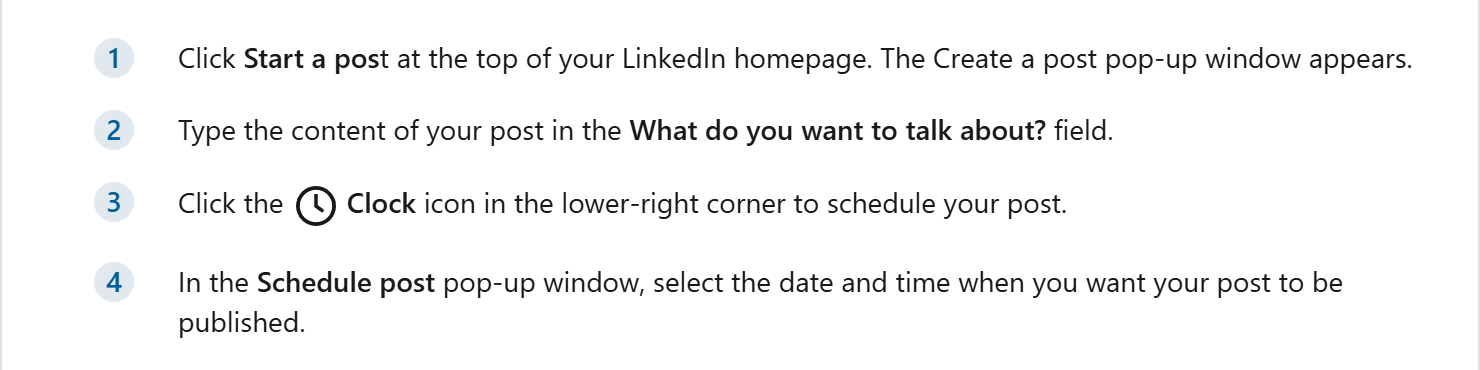
On desktop, the steps are:
- Click Start a post on your LinkedIn homepage.
- Type your post.
- Click the Clock icon in the lower-right corner of the box.
- Pick the date and time you want it published.
- Click Next.
- Click Schedule.
On the mobile app, tap Post, then the Clock icon in the upper-right corner. Everything after that works the same way.
Seeing and Changing What You Scheduled
To check your queue, click the Clock icon in the post box and open your scheduled posts. From there, the More icon gives you Modify schedule or Edit post. So a typo isn't a disaster, and a change of plan only takes a minute.
There is one limit worth knowing. LinkedIn says events and jobs can't be scheduled this way.
When LinkedIn's Own Scheduler Is Enough
If you put out one or two posts a week, stop here. You can probably stay on top of that by hand, and the built-in tool costs nothing. I would not build anything more for a few posts a month.
Why Scheduling Fails Even When the Tool Works
The tool was never my problem. It's one post at a time, with the date set by hand, and you have to remember to do it. Consistency usually goes like this: you do it for a week, you get busy, you forget, and then you come back to it weeks later.
For a video post, I put the job at about 15 minutes per post. You upload the video, start the post, write the words and go through the steps. As a result, a week of posts quietly becomes a job you keep pushing to tomorrow.
Batching didn't fix it either. I would spend maybe an hour scheduling four or five clips in one go. Then I'd forget when they were due out, and I once had a clip go out at 11 o'clock alongside a normal piece of content.
Does Posting Regularly Actually Matter?
The data says yes, within reason. Buffer looked at more than 2 million LinkedIn posts from over 94,000 accounts. Posting 2 to 5 times a week brought about 1,182 more impressions per post than posting once a week.
Format matters too. In the Taplio March 2026 benchmark of 219,456 posts, video posts had 4,952 median views against 309 for text-only posts. That is a vendor benchmark, not a controlled test, so treat it as a direction rather than a promise.
Neither figure helps if the post never goes out, though. Scheduling only solves the timing. It does nothing about the remembering.
My LinkedIn Post Scheduler: The 6-Stage System
My LinkedIn post scheduler is a queue of finished video clips and one timed job that posts the oldest clip, one per run. Nothing about it needs me at the desk at 11:00. It runs through Windows Task Scheduler and Blotato, and I built it using Claude.
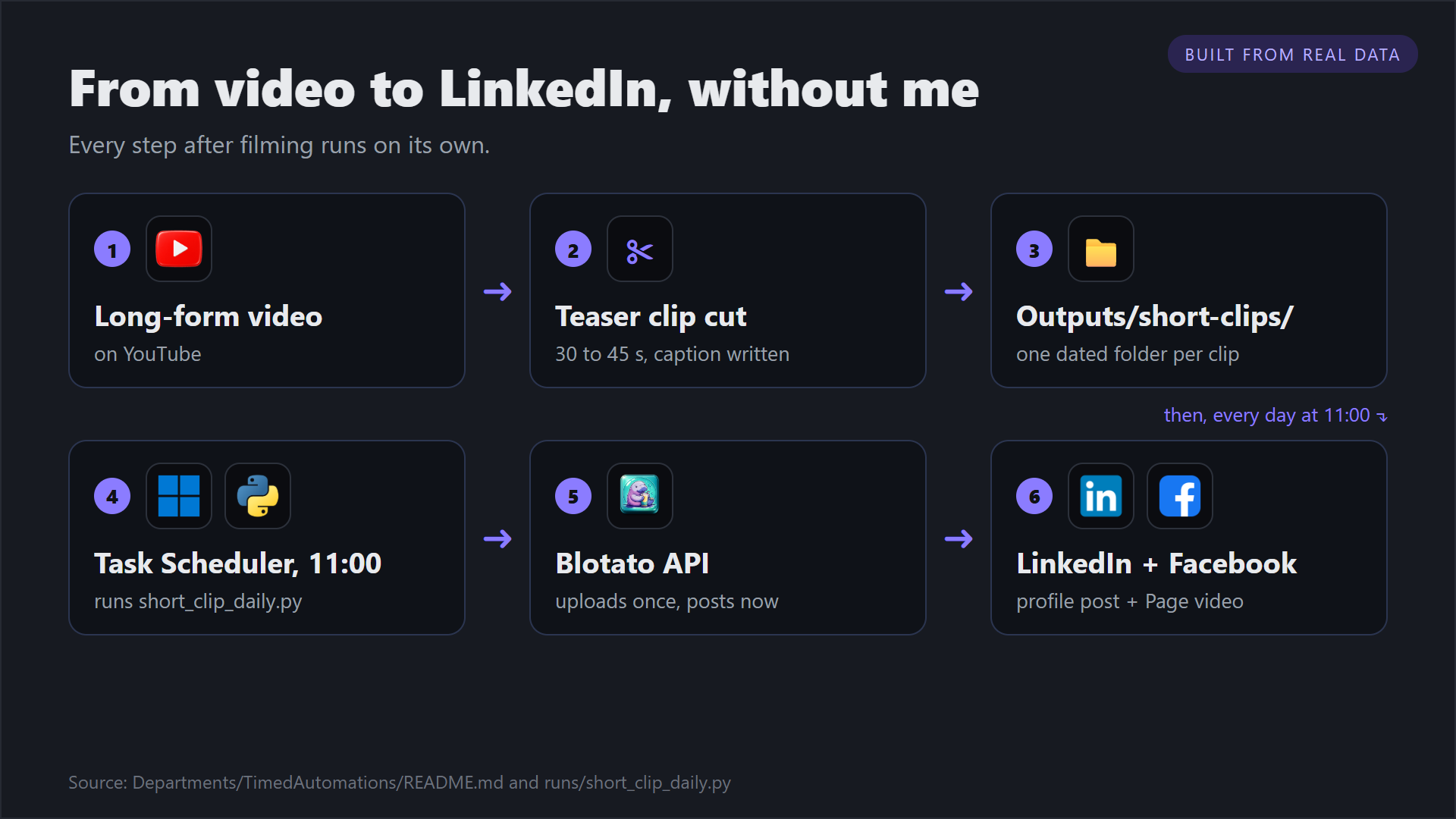
Here is what happens at each stage:
- The long-form video gets edited. I use AI to edit my YouTube videos, as part of my normal process.
- A teaser clip is cut from it. It runs about 30 to 45 seconds, and it tends to start on a question and end on a question to create some curiosity.
- The clip lands in a folder. Each video gets one dated folder holding the clip and a
caption.mdfile, with a LinkedIn section and a Facebook section. - Task Scheduler fires at 11:00. It runs a short Python script on my computer.
- The script hands the clip to Blotato's API. It uploads the clip once and posts the caption with it.
- The post goes out on LinkedIn and Facebook. Then the folder is deleted.
Why the Oldest Clip Goes First
Each run takes the oldest folder in the queue and posts just that one. Since there is no age cut-off, a clip that waited a week is still next in line. After months of long-form videos I have a big backlog of clips, so older videos get another outing.
Deleting the folder is what stops repeats. Posted means gone, so nothing can go out twice.
Why It Can't Just Sit in a Scheduling Tool
You might ask why I don't upload everything to Blotato in advance. The reason is the link. Every caption carries the YouTube watch URL, so the person reading can go straight to the full video. A teaser can only go out after that video is public, because otherwise the link leads to a private or unlisted video.
So the queue sits on my side until the clip is ready. As a safety check, the script won't post a folder if the watch link is still a placeholder.
Real Clips, Not AI Filler
This is the part I care about most. It is possible to run the same setup on 100% AI-generated content, but look at the comments on other LinkedIn scheduler videos. You get bots writing posts and bots commenting on them.
Mine posts real clips of me, taken from my own videos. The caption comes from what the long-form video actually covers. AI handles the editing and the plumbing, and the thing people see is still me.
If you want the wider version of this idea, our guide on how to repurpose YouTube videos into LinkedIn posts covers the content side.
How to Automatically Post to LinkedIn Without an API Key
You don't need a LinkedIn developer app for any of this. Your script talks to Blotato, and Blotato talks to LinkedIn. The Blotato API docs show posts being sent with a blotato-api-key header, so the only key you handle is Blotato's.
Those docs also explain the timing. If a request has no scheduledTime and no useNextFreeSlot, the post publishes immediately. That is how my run works: the post time is simply the moment the script runs.
Personal Profile or Company Page
Both are covered. Blotato's LinkedIn docs say to leave out pageId for a personal profile, and to use a pageId from the account's subaccounts for a company Page. The same page confirms it can publish text, a single image, a video or an image carousel.
What Task Scheduler Does
Microsoft's documentation describes Task Scheduler as a way to automatically perform routine tasks on a chosen computer, including at a specific time on a daily schedule. It comes with Windows, and that is all this needs.
How to Build Your Own Version
You can ask Claude or Codex to build this with you, assuming you already have one of them set up. For example, the order I would follow is:
- Connect Blotato. Link your LinkedIn account and get your API key.
- Make one queue folder. Use one dated folder per post, holding the video and a caption file.
- Write the script. It takes the oldest folder, sends the video and caption to Blotato, then deletes the folder.
- Make dry run the default. With no flag, it prints the captions and sends nothing. Only
--liveposts. - Add stop checks. If the caption is missing or the watch link is unfilled, stop and post nothing.
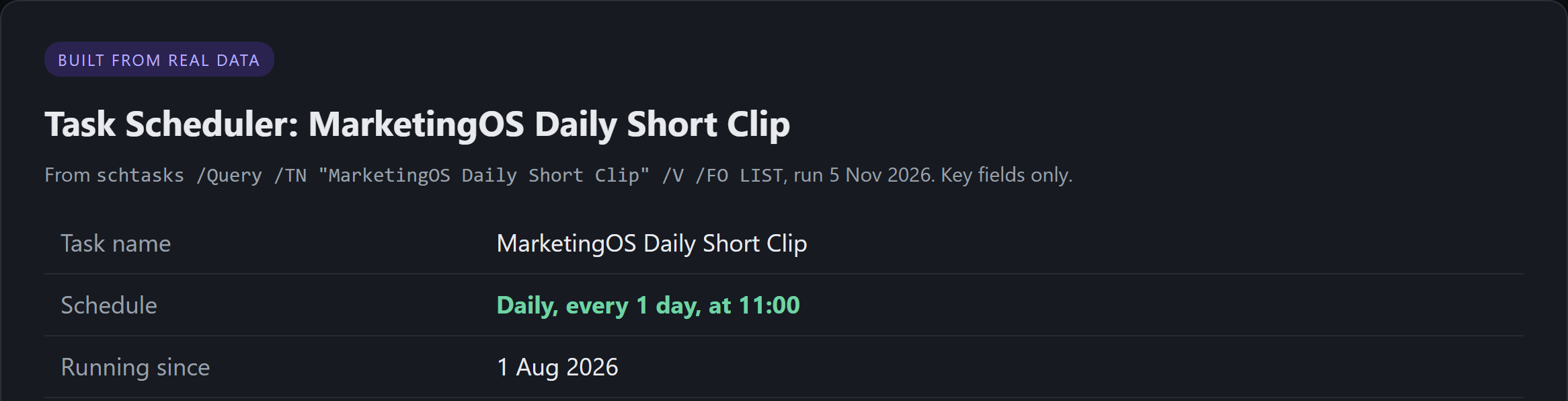
- Register the task. Set Task Scheduler to run the script daily with
--live.
Pro tip: let a broken folder block the queue rather than skipping it. If the oldest folder fails a check, my run stops and shows an error in Task Scheduler, so the problem can't get buried. Similarly, if one platform posts and the other fails, the folder is kept so I can post the missing one by hand.
For a broader view of what else can run this way, see how to automate social media posting.
The Same Idea for Articles
Articles are the next layer. My long-form videos also get turned into articles as part of the process, and they get the same treatment. The way I have it set up, once an article is scheduled and published, the LinkedIn scheduler creates a LinkedIn post for it and pushes the link out. There could be up to seven days between that and the teaser clip, so the two never come out together.
The point is the same as with the clips. As soon as I have to jump in and set something up by hand, I'll get distracted and it won't happen.
Where the System Breaks
Every setup has a weak point, and mine is simple. The computer needs to be on and logged in at 11:00. If it isn't, the run doesn't happen, and there is no catch-up.
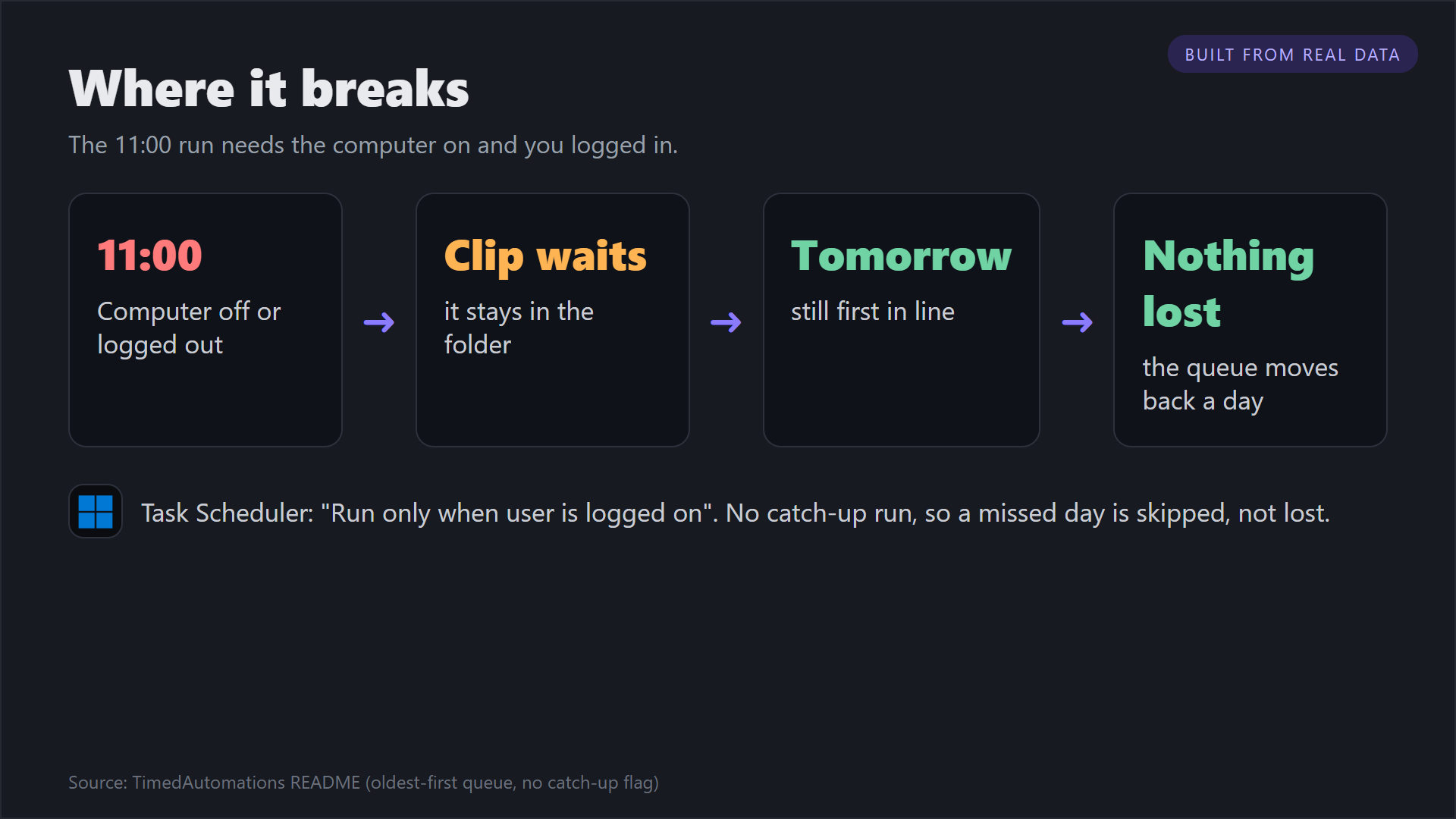
A missed day loses nothing, though. Because the queue runs oldest first, the same clip is at the front for the next run. I work most days anyway, so it suits me. I also think missing the odd day looks more natural than a constant stream of content.
There are easy fixes if you need one. For instance, Blotato's API accepts a scheduledTime, so you could hand posts over in advance rather than relying on your computer at the moment of posting. For now, the way I have it set up makes little difference to me.
The Honest Number
Here is the figure I would want to see before copying this. Between 3 August and 3 November 2026, it put out 48 clip posts on LinkedIn. That is about 3 to 4 a week, not one a day.
The gap has two causes. The run only posts what I've made, so no long-form video means no clip. On top of that, the computer has to be on. Still, that is 48 posts I didn't have to remember.
What It Costs and Who Should Skip It
The only real cost is Blotato. Task Scheduler comes with Windows, and the script costs nothing to run. I'm assuming you already have Claude or Codex set up.
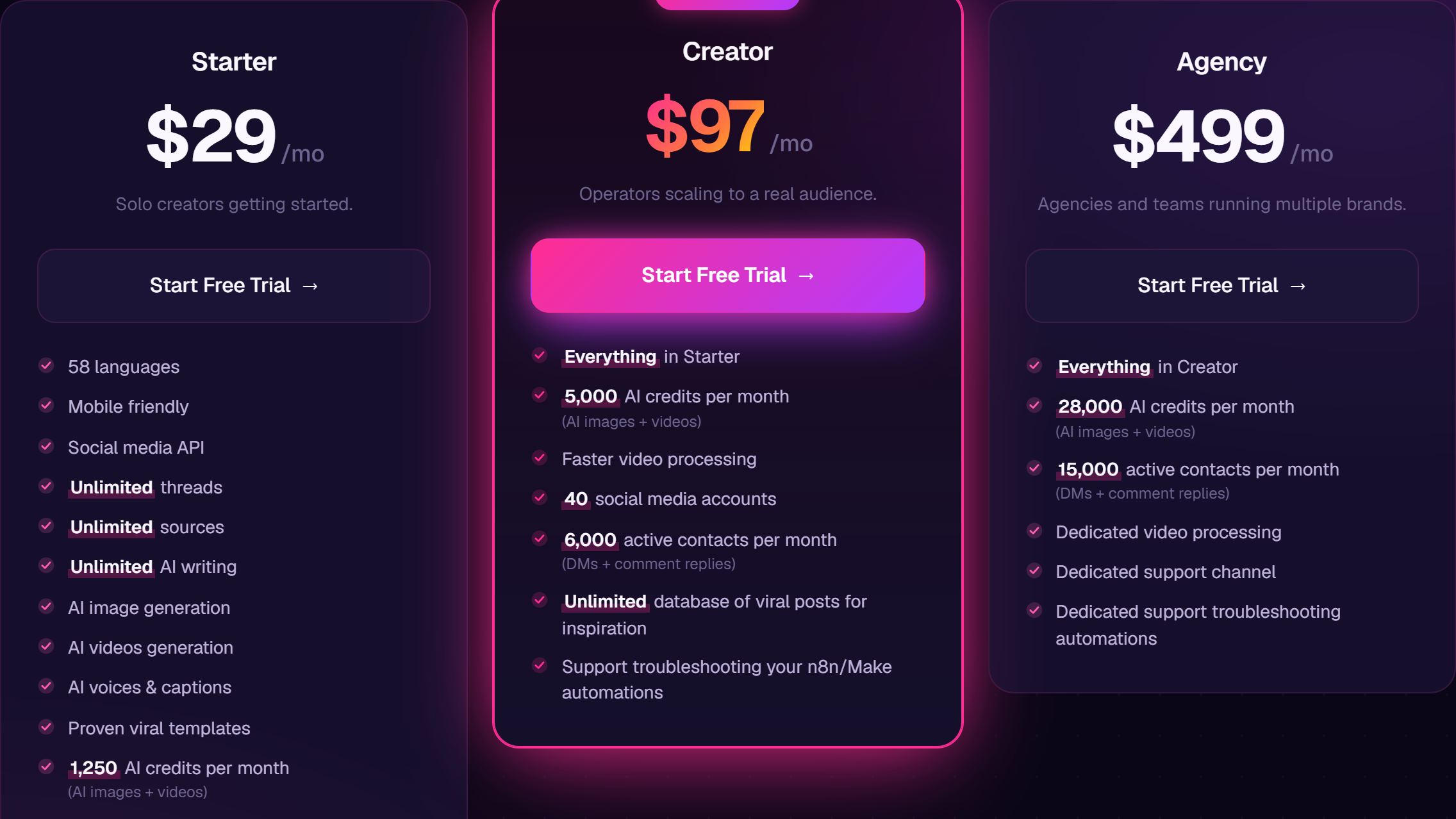
According to the Blotato pricing page, Starter is $29 a month and lists the Social media API. There is a free 7-day trial, but it does not cover the API. The same page says generating an API key ends the trial and starts your paid subscription, so budget for the first month from day one.
Skip this if any of these apply:
- You don't make video, so there is nothing to feed the queue.
- You only post a few times a month, because LinkedIn's built-in scheduler is fine for that.
- You need the post out at an exact moment, because this run depends on your computer being on.
If you do build it, separate your posts out a little, so it never looks like every social is posting the exact same thing. Some people on LinkedIn won't see your YouTube, and the reverse is also true, so one long-form video can travel a long way.
If you're not sure how to do this for yourself, that's what The AI Marketing Hub is for. I go through setups like this with members, and Premium members get one-to-one calls if they get stuck. You can start with a 7-day free trial.
FAQ
Can you schedule posts on LinkedIn?
Yes. LinkedIn has a built-in scheduler on desktop and mobile. Start a post, click the Clock icon, pick a date and time, then click Next and Schedule. You can choose a slot between 10 minutes and 3 months from now, and it works well if you only post once or twice a week.
How do I edit a LinkedIn post that has been scheduled?
Open the post box, click the Clock icon and go to your scheduled posts. Then click the More icon on the post you want to change and choose Modify schedule or Edit post. You can move the publish time or change the content. You can also delete it there if your plans have changed.
Do you need a LinkedIn API key to automate posts?
Not with this setup. Your script sends the post to Blotato using a Blotato API key, and Blotato handles the connection to LinkedIn. There is no LinkedIn developer app to create and nothing to get approved. Keep in mind that Blotato's free trial excludes the API, so generating a key starts your paid plan.
What happens to a scheduled post if your computer is off?
With my setup, the 11:00 run simply doesn't happen. The clip stays in its folder and stays first in line, so it goes out on the next run instead. Nothing is lost, and the queue moves back a day. LinkedIn's own scheduler is different, because the post is already held on LinkedIn.
Disclosure: Some links in this article are referral links. If you use one, I may earn a commission at no extra cost to you. I only link to tools I actually use.
How this was made: The facts, numbers and examples in this article come from my own work and videos. I use AI to help draft and structure the writing, then I review and edit every line myself before it goes live.

About the author
I'm Wayne St Ledger, and I run St Ledger Marketing. I started out in construction as a plasterer, then went on to a Bachelor's in Marketing and a Master's in International Business, which is where my bias toward results over talk comes from. I help business owners build marketing systems they actually understand, using AI in grounded, practical ways rather than hype. I also run a YouTube channel on marketing and AI, and The AI Marketing Hub, my own community for business owners and marketers putting AI to work properly.